Why Is My Kubernetes Job Still Pending? Tracing Kueue Admission with Headlamp
You submit a Kubernetes Job and wait for its Pods to appear. A minute passes. Then another. The Job is still suspended, there are no application logs, and there may not even be a Pod to inspect.
In a cluster managed by Kueue, this can be completely normal. Kueue may still be deciding whether the Job can use the requested resources. The useful question is not only “Why is the Pod pending?” It is first “Has Kueue admitted the Workload?”
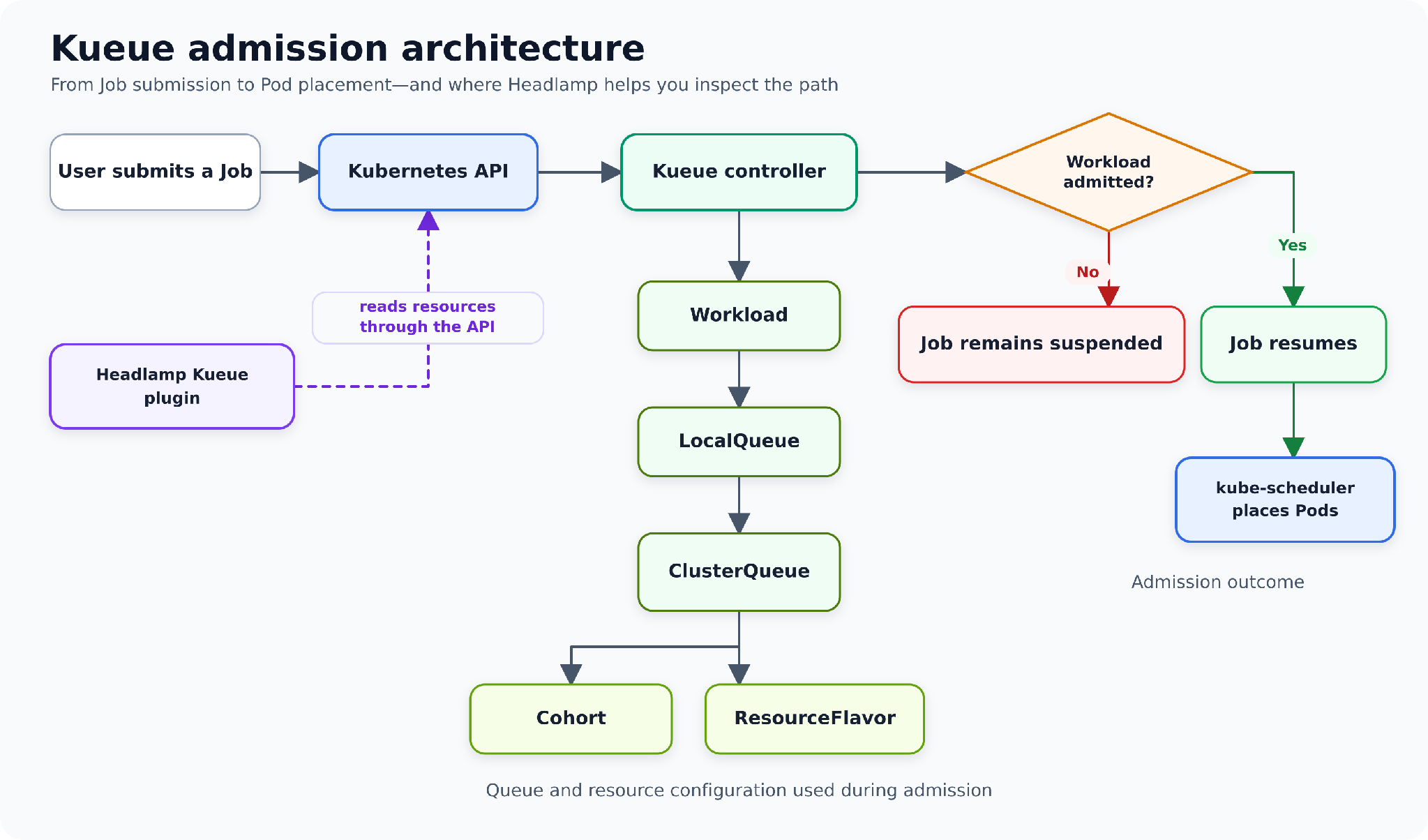
The Kueue plugin for Headlamp brings that investigation into the Headlamp UI. Instead of reconstructing the admission path from several commands and large YAML objects, you can begin with the Workload, read its condition message, and follow links through the LocalQueue, ClusterQueue, ResourceFlavor, and Cohort.
This article follows that Headlamp-first path. The command line appears only in a short optional section for reproducing the example.
Before you begin
You need a Kubernetes cluster with Kueue installed,
a Headlamp installation, and the
0.1.0-alpha Kueue plugin.
Your Kubernetes identity must be allowed to read the Kueue resources used in this article.
The alpha release provides read-only views for Kueue v1beta2 Cohorts, ClusterQueues, LocalQueues,
ResourceFlavors, and Workloads. It does not add its own create, edit, stop, resume, or delete
workflows. Headlamp still provides its standard YAML and resource actions where your permissions
allow them.
First, separate admission from Pod scheduling
Kueue and the Kubernetes scheduler answer different questions.
-
Kueue admission: Should this Workload start now, considering queue policy, quota, ResourceFlavors, admission checks, and other waiting Workloads?
-
Pod scheduling: After the Workload is admitted and the Job resumes, which nodes can run its Pods?
That boundary changes the investigation. If the Workload is not admitted, stay in the Kueue section
of Headlamp. If it is admitted but its Pods are still Pending, move to Headlamp's normal Job and
Pod views and inspect scheduler events.
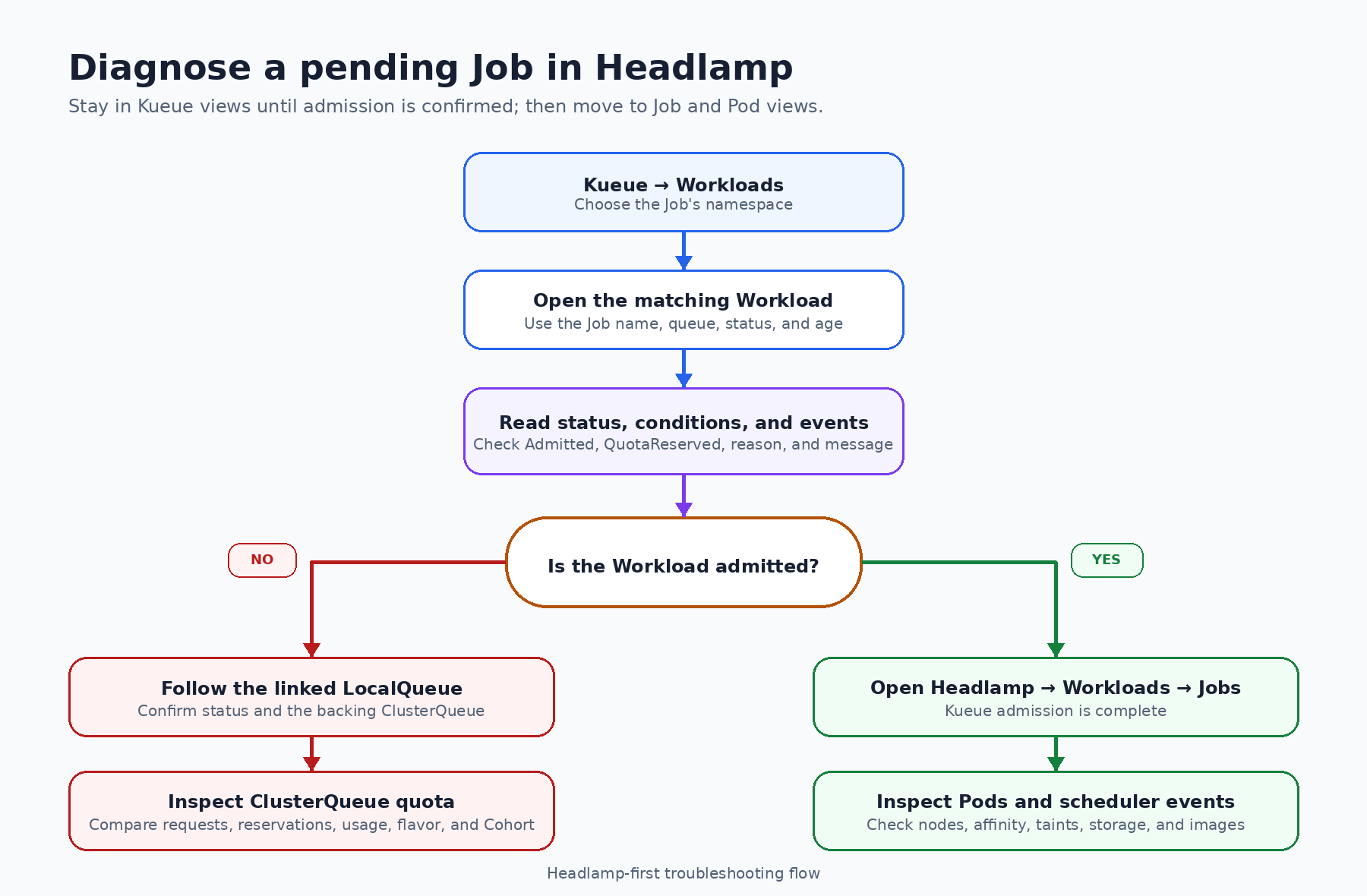
The Headlamp-first troubleshooting path
The quickest investigation starts with the Workload, not with a shell.
Step 1: Open the Workloads view
In Headlamp, open Kueue → Workloads. Select the namespace that contains the Job, then find the Workload created for it.
Kueue creates a Workload to represent the
resource request and admission state of a Job. In the alpha plugin, owner references are shown as
Kind/name text but are not yet clickable. The Workload name normally contains the Job name, so the
namespace filter and table search are the simplest ways to locate it.
Before opening the detail page, the list already gives you a useful first scan:
-
LocalQueue
-
priority and priority class
-
active state
-
admitted state
-
completion state
-
a readable current status such as
Admitted,Finished, orInadmissible -
age
If there is no matching Workload, check three things before going further: the selected namespace, whether the Job was submitted to a LocalQueue, and whether your Kubernetes account can list Workloads. The plugin performs permission checks and displays an access message when the current identity cannot read a resource.
Step 2: Read status, conditions, and events
Open the Workload. Start with its current status and conditions, not with the full YAML.
For admission troubleshooting, the most important condition types are QuotaReserved and
Admitted.
-
Admitted=Truemeans Kueue has admitted the Workload. The Job can resume, so any remainingPendingPods belong to the scheduling branch of the investigation. -
QuotaReserved=Falsewith a reason such asPendingmeans Kueue has not reserved quota. The condition message explains what prevented the reservation. -
QuotaReserved=TruewithoutAdmitted=Truemeans quota is reserved, but one or more admission checks may still be pending. Inspect the Workload's admission checks and messages before moving to Pod scheduling. -
An
Inadmissiblestatus means the Workload currently cannot fit the available queue configuration. A missing covered resource, unsuitable ResourceFlavor, stopped queue, or admission check can all lead you here.
For example, a condition message may report that Kueue could not assign a ResourceFlavor because the ClusterQueue has insufficient CPU quota. That message is the first real answer to “Why is my Job still pending?” The rest of the Headlamp journey explains the configuration behind it.
Also check the Events section. Conditions describe the current state; events help show what recently changed or what Kueue attempted.
Step 3: Compare the Workload's request with its assignment
Stay on the Workload detail page and inspect the PodSets and resource requests. The plugin shows the requested Pod count, CPU, memory, and other resources that Kueue evaluates together.
This matters because a Job with parallelism: 3 and a one-CPU request per Pod asks Kueue for three
CPUs in total. Looking at only one Pod's template would underestimate the Workload.
If quota has already been reserved, the same page also shows the assigned ClusterQueue, ResourceFlavors, and admitted resource usage. If those admission assignments are absent, the Workload has not reached that point yet.
In our example, the Workload requests:
-
three Pods
-
three CPUs in total
-
600 MiB of memory in total
The next question is where that request entered Kueue.
Step 4: Follow the linked LocalQueue
Use the LocalQueue link on the Workload detail page. A LocalQueue is the namespace-level entry point used by the Job. It connects namespaced Workloads to a cluster-scoped ClusterQueue.
The LocalQueue page shows:
-
its namespace and connected ClusterQueue
-
stop policy and current status
-
pending, reserving, and admitted Workload counts
-
Kueue conditions and Kubernetes events
-
related Workloads in the same namespace
This page answers two practical questions: Did the Job enter the queue you expected, and is it the only Workload waiting there?
If the LocalQueue is inactive or stopped, that may already explain the wait. If it is active, follow the linked ClusterQueue to inspect the capacity behind it.
Step 5: Inspect ClusterQueue capacity and usage
A ClusterQueue represents the cluster-level quota and admission policy available to one or more LocalQueues.
On its Headlamp detail page, compare the Workload request with:
-
covered resources
-
nominal quota for each ResourceFlavor
-
current reservations and usage
-
borrowing and lending limits
-
pending, reserving, and admitted Workload counts
-
queueing strategy and stop policy
-
preemption, fair-sharing, flavor-fungibility, and admission-check settings
-
Kueue conditions and Kubernetes events
For the example in this article, the ClusterQueue provides a nominal quota of two CPUs and two Pod slots. The Workload asks for three of each. The condition message and the ClusterQueue page now tell the same story: the Workload does not fit, so Kueue leaves the Job suspended.
This is an admission-capacity problem. It is not evidence that kube-scheduler failed to find a node.
Step 6: Check ResourceFlavor and Cohort when needed
Quota is not always a single pool. A ResourceFlavor can represent a class of compute through node labels, taints, tolerations, or topology settings. Use the ResourceFlavor link from the ClusterQueue when the condition mentions flavor assignment or when the Workload requires a particular hardware class, such as GPU nodes.
If the ClusterQueue belongs to a Cohort, follow that link too. Cohorts let ClusterQueues share unused quota. The Headlamp page shows parent and child Cohorts, member ClusterQueues, referenced ResourceFlavors, resource groups, borrowing and lending limits, and fair-sharing information.
These pages help answer a more subtle question: Is the Workload blocked because the queue has no quota of its own, because it cannot borrow enough, or because no suitable flavor can be assigned?
What we learned without leaving Headlamp
For the sample pending Job, the UI gives us a complete explanation:
-
The Workload is not admitted.
-
Its
QuotaReservedcondition is false and the message points to insufficient quota. -
The Workload requests three CPUs and three Pod slots.
-
Its LocalQueue is active and points to the expected ClusterQueue.
-
The ClusterQueue provides only two CPUs and two Pod slots.
-
Kueue therefore keeps the Job suspended until quota becomes available or the queue configuration changes.
The important part is not that Headlamp invents a new status. It reads the same Kubernetes API objects as other clients, then places the related resources and human-readable values in one connected investigation.
If the Workload is admitted, switch views
Suppose the Workload detail page shows Admitted=True, but the application is still not running.
Kueue has completed its part of the decision. Continue in Headlamp's standard Kubernetes views:
-
Open Workloads → Jobs and inspect the Job state and events.
-
Open Workloads → Pods and filter by the Job name or namespace.
-
Select a
PendingPod and read its Events section.
At this stage, look for Pod startup or scheduling concerns such as insufficient node capacity, node affinity, taints and tolerations, topology constraints, persistent-volume binding, or image-pull failures.
This handoff is the most useful troubleshooting rule in the article:
-
Not admitted: investigate Kueue resources in Headlamp.
-
Admitted, but Pods arePending: investigate Job, Pod, node, and scheduler information in Headlamp.
A repeatable Headlamp checklist
When the next Job does not start, use this short path:
-
Open Kueue → Workloads and select the correct namespace.
-
Find the Workload associated with the Job.
-
Check the readable status,
Admitted, andQuotaReservedconditions. -
Read the condition message and recent events.
-
Compare PodSet resource requests with any admission assignments.
-
Follow the LocalQueue link and confirm its status and ClusterQueue.
-
Follow the ClusterQueue link and compare quota, reservations, usage, and policy.
-
Inspect ResourceFlavor or Cohort details when the message points to flavor selection or shared quota.
-
If admitted, move to Headlamp's Job and Pod views.
What Headlamp replaces during this investigation
The plugin does not replace kubectl or
kueuectl for scripts, exact object
output, or changes. It replaces the repetitive UI-less navigation needed during an interactive
investigation.
| Question | Headlamp path | Command-line equivalent |
|---|---|---|
| Is the Workload admitted? | Kueue → Workloads → status and conditions | kubectl describe workload <workload-name> -n <namespace> |
| Which LocalQueue did it enter? | Workload → linked LocalQueue | kubectl get localqueue <localqueue-name> -n <namespace> -o yaml |
| Which ClusterQueue provides quota? | LocalQueue → linked ClusterQueue | kubectl get clusterqueue <clusterqueue-name> -o yaml |
| Which flavor or shared quota matters? | ClusterQueue → ResourceFlavor or Cohort | kubectl get resourceflavor <flavor-name> -o yaml or kubectl get cohort <cohort-name> -o yaml |
| What happened after admission? | Workloads → Jobs and Pods → events | kubectl describe job <job-name> -n <namespace> or kubectl describe pod <pod-name> -n <namespace> |
For scripts and GitOps workflows, the command line remains the right tool. For a person asking “why is this waiting?”, the linked Headlamp path is usually faster to read.
Optional: reproduce the pending scenario
The plugin repository includes sample Cohort, ClusterQueue, LocalQueue, ResourceFlavor, and Job manifests for local testing. Apply those examples to a cluster where Kueue is installed, then open the Kueue section in Headlamp.
To reproduce the specific quota mismatch used in this article, configure a ClusterQueue with two CPUs and two Pod slots, then submit a three-Pod Job that requests one CPU per Pod. The Job enters its LocalQueue, Kueue creates a Workload, and the Workload remains pending because the combined request is larger than the available quota.
Keeping this setup separate from the main walkthrough is intentional: once the resources exist, the investigation itself should happen in Headlamp.
Current alpha limitations
The 0.1.0-alpha release is an initial read-only view of the Kueue admission path.
-
The plugin does not add its own create, edit, pause, resume, or delete flows.
-
Workload owner references are displayed as text and are not currently navigable.
-
The UI depends on the Kubernetes permissions of the identity used by Headlamp.
-
Metrics and a visual relationship map are possible follow-up areas rather than features of this release.
These limits are useful to state clearly: the plugin's current purpose is to make admission state and resource relationships easier to inspect.
Developed during LFX Mentorship
The plugin was developed during CNCF LFX Mentorship 2026 Term 2 using TypeScript, React, Kubernetes APIs, and Headlamp's plugin system.
Utkarsh Raj implemented the plugin with guidance and review from René Dudfield (@illume) and Kevin Hannon (@kannon92). Feedback from the Headlamp and Kueue communities shaped the resource views, status presentation, navigation, documentation, tests, and first alpha release.
Try it and share feedback
Explore the plugin source and README,
read the
0.1.0-alpha release documentation,
or share feedback in the release issue.
If a pending Workload is still difficult to explain after following the Headlamp path, that is exactly the kind of feedback that can improve the plugin.